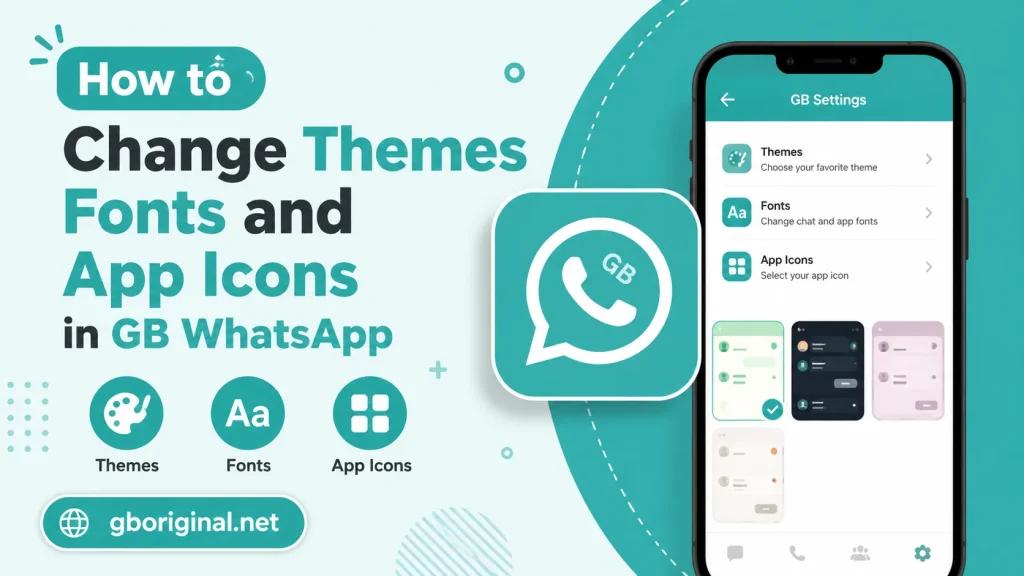
How to Change Themes Fonts and App Icons in GB WhatsApp
One of the biggest attractions of GB WhatsApp is customization. While the standard WhatsApp interface is designed to remain relatively consistent, GB WhatsApp versions often provide additional ways to personalize the application.
Users may be able to change themes, fonts, colors, backgrounds, icons, and other visual elements. This guide explains the general process and provides practical tips for customizing GB WhatsApp without creating unnecessary problems.
Why Customize GB WhatsApp?
Customization allows you to make the application feel more personal.
Popular changes include:
- Themes
- Fonts
- Chat backgrounds
- Text sizes
- Colors
- App icons
- Notification appearance
- Conversation styles
- Home-screen layouts
The available options depend on the installed version.
How to Change Themes
Themes can change the overall appearance of GB WhatsApp.
A general process is:
- Open GB WhatsApp.
- Tap the menu icon.
- Open GB Settings or the customization section.
- Find Themes.
- Browse available themes.
- Select a theme.
- Apply it.
- Restart the application if required.
The exact menu names may vary between versions.
Using Custom Themes Carefully
Some versions allow users to import or download themes.
Before applying a third-party theme, consider the source carefully. Avoid files that appear suspicious or request unnecessary access.
A theme should normally affect appearance rather than require unrelated device permissions.
How to Change Fonts
If your GB WhatsApp version supports font customization:
- Open GB WhatsApp.
- Go to Settings.
- Open the customization section.
- Find the Font option.
- Browse available fonts.
- Select your preferred font.
- Apply the change.
- Restart the application if necessary.
Changing the font can make conversations easier or more enjoyable to read.
How to Change Font Size
Some versions allow users to adjust font size separately from the font style.
This can be useful if the default text appears too small or too large.
Look for options related to:
- Conversation text
- Home-screen text
- Chat text
- Font size
- Interface text
How to Change the App Icon
Some GB WhatsApp builds include alternative application icons.
If supported:
- Open GB WhatsApp.
- Go to GB Settings.
- Find the launcher or app-icon section.
- Select an available icon.
- Apply the change.
- Return to the home screen.
Depending on the Android version and launcher, the icon may not change immediately.
Theme and Customization Options
| Customization | Purpose |
| Themes | Changes overall interface appearance |
| Fonts | Changes text style |
| Font Size | Changes text scale |
| Backgrounds | Changes chat backgrounds |
| Colors | Changes interface colors |
| App Icons | Changes launcher appearance |
| Chat Style | Changes conversation appearance |
| Notifications | Changes notification presentation |
Create a Comfortable Interface
Customization should improve usability rather than simply adding visual effects.
For example, extremely bright backgrounds can make reading difficult, while unusual fonts may reduce readability.
A good customization setup should have:
- Clear text
- Good contrast
- Comfortable font size
- Simple backgrounds
- Easily recognizable icons
- Minimal distractions
How to Restore the Default Theme
If a theme causes problems or you simply want to return to the standard appearance, look for the default or reset option in the customization settings.
A typical process is:
- Open GB Settings.
- Go to Themes.
- Select Default.
- Apply the setting.
- Restart the application if required.
What If GB WhatsApp Looks Strange After Applying a Theme?
A theme may not be fully compatible with your current version.
Possible solutions include:
- Reapply the default theme.
- Restart the application.
- Clear temporary cache if appropriate.
- Install a compatible theme.
- Update to a compatible version.
- Restore previous customization settings.
Avoid deleting application data unless you have confirmed that important information is backed up.
Can Themes Affect Performance?
Some complex themes may use additional visual elements. On older or lower-powered phones, this could potentially affect performance.
If the application becomes slow after customization, try a simpler theme and restart the device.
Customization Best Practices
For a better experience:
- Use themes compatible with your version.
- Avoid suspicious theme files.
- Keep backup copies of important data.
- Do not install unnecessary companion applications.
- Choose readable fonts.
- Avoid excessive visual effects.
- Test changes one at a time.
Frequently Asked Questions
Many GB WhatsApp versions provide extensive theme customization options.
Yes, some versions allow users to select different fonts and adjust text appearance.
Certain builds provide alternative app icons, although availability depends on the version and Android launcher.
Changing a theme normally affects appearance rather than chat data. Nevertheless, creating a backup before major customization is a sensible precaution.
The theme may be incompatible with your GB WhatsApp version, incorrectly installed, or affected by a later update.
Conclusion
Themes, fonts, colors, backgrounds, and app icons make GB WhatsApp attractive to users who want more control over their messaging interface. Customization can be simple when the available settings are used carefully.
If you are exploring GB WhatsApp customization in 2026, gboriginal.net can help you learn about themes, fonts, privacy settings, updates, and other features. Always choose compatible customization options and avoid suspicious files.