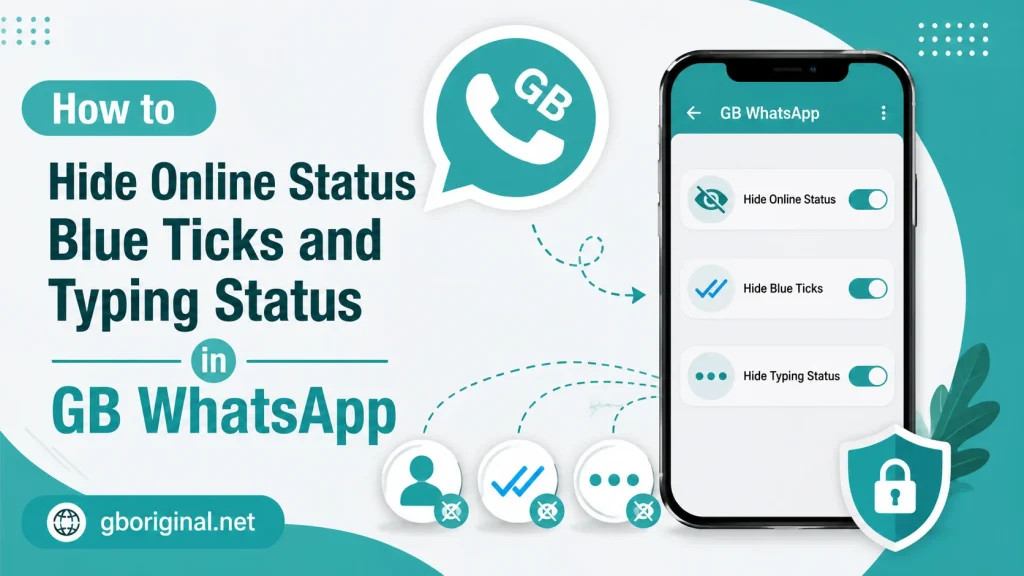
How to Hide Online Status Blue Ticks and Typing Status in GB WhatsApp
Privacy is one of the main reasons people choose GB WhatsApp. The application is known for providing additional controls that can change how other users see your activity.
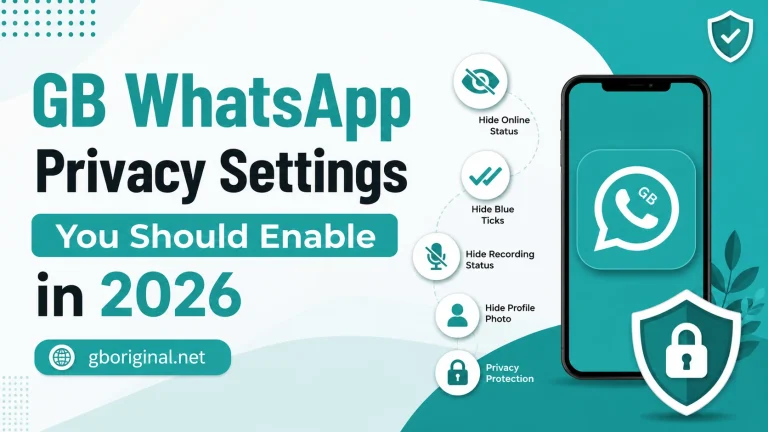
Depending on the version, GB WhatsApp may allow you to hide your online status, blue ticks, typing indicator, and other activity information.
These settings can be useful if you want more control over your availability and messaging privacy. However, the exact options can change between versions.
What Privacy Controls Does GB WhatsApp Provide?
Different GB WhatsApp builds can include different privacy features.
Common options may include:
- Hide online status
- Hide blue ticks
- Hide second ticks
- Hide typing status
- Hide recording status
- Hide viewed status activity
- Control last-seen visibility
- Customize privacy for individual contacts
Not every option is guaranteed to work identically in every release.
How to Hide Online Status
Online status lets other users know when you are actively using the application.
If your GB WhatsApp version supports online-status controls, the setting can generally be found through the Privacy section.
A typical process is:
- Open GB WhatsApp.
- Tap the menu button.
- Open Privacy or Settings.
- Find Online Status.
- Select the option to hide or control your online status.
- Save the setting if required.
The menu names can vary.
How to Hide Blue Ticks
Blue ticks can indicate that a message has been read.
If you want additional control over read indicators:
- Open GB WhatsApp.
- Go to Settings.
- Open Privacy.
- Find the Read Receipts or Blue Ticks section.
- Select the desired privacy option.
Some builds may provide separate settings for contacts and groups.
How to Hide Typing Status
Typing indicators show other users that you are currently writing a message.
Some GB WhatsApp versions include an option to hide this indicator.
To check:
- Open Settings.
- Go to Privacy.
- Look for Typing Indicator or related options.
- Select the desired setting.
- Test the feature with a trusted contact.
How to Hide Recording Status
Some builds may also allow users to control whether a recording indicator is visible while recording a voice message.
The option may be located near typing-status settings.
Because this is a modified feature, availability and behavior can differ between versions.
Privacy Settings Comparison
| Setting | What It Controls |
| Online Status | Whether contacts can see you online |
| Blue Ticks | Read-message indicators |
| Second Ticks | Delivery-related indicators |
| Typing Status | Whether contacts see that you are typing |
| Recording Status | Whether contacts see recording activity |
| Last Seen | Recent activity visibility |
| Status Privacy | Who can see your status updates |
Why Hide These Indicators?
There are several reasons users may want additional privacy.
For example:
- You want to reply later.
- You do not want others monitoring your activity.
- You prefer a quieter messaging experience.
- You want greater control over availability.
- You do not want contacts to know when you are typing.
Privacy preferences are personal, and different users may choose different settings.
Things to Remember
Privacy settings can change how communication works.
If you hide read indicators, you may also have limited visibility into whether other people have read your messages, depending on the specific implementation.
Similarly, hiding online or typing activity does not make your account anonymous.
Other information can still reveal activity, such as messages, calls, profile changes, or status updates.
How to Check Whether a Privacy Setting Works
After changing a setting, test it carefully.
You can:
- Change one privacy option.
- Close and reopen the application.
- Ask a trusted contact to check your activity.
- Send a test message.
- Confirm whether the indicator behaves as expected.
Testing is useful because modified applications can behave differently after updates.
Troubleshooting Privacy Settings
Setting Does Not Appear
Your installed version may not support the feature.
Setting Does Not Work
The feature may be incompatible with your current version or Android environment.
Setting Resets
An update or configuration change can sometimes restore default settings.
Contacts Still See Activity
Some activity indicators may behave differently depending on chats, groups, or application versions.
Privacy Best Practices
Use privacy settings alongside general account-security practices.
Recommended steps include:
- Review privacy settings regularly.
- Use a secure screen lock.
- Keep your device updated.
- Avoid suspicious APK files.
- Review application permissions.
- Back up important chats.
- Avoid sharing verification codes.
Frequently Asked Questions
Many GB WhatsApp versions provide options for hiding or controlling online visibility.
Many builds offer additional controls for read receipts and blue ticks.
Some versions provide a setting that hides typing indicators from contacts.
No. Privacy settings control certain visible activities, but they do not guarantee complete application or device security.
The feature may not be supported by your version, may have changed after an update, or may not work consistently due to compatibility issues.
Conclusion
GB WhatsApp provides additional privacy controls that can help users manage online status, blue ticks, typing indicators, and other activity signals. These features are among the application’s most popular additions.
However, privacy settings should not be confused with complete security. If you use GB WhatsApp, keep your device protected, review permissions, back up important chats, and be careful with APK sources.
For more GB WhatsApp privacy guides and feature explanations, gboriginal.net can help you understand how different settings work in 2026.